

The following article is a condensed version of the user guide. You can learn about more features under the Plugin Interface Overview.
Overview
Grammy-winning mixer and engineer Teezio has built his reputation crafting polished, impactful mixes for artists including Drake, Jack Harlow, and many more.
For years, one vintage Blue Stripe compressor defined the vocal sound he was after. He tried countless software recreations, but none captured the tone, response, and unmistakable feel of the vintage hardware he loved.
Artists Presets
The plugin includes artist presets from and more. The presets can be accessed through the plugin preset menu.
Global Plugin Features

The top section of the plugin includes global controls such as:
Input Gain
Input Filters
Standard/Clean Mode
Oversampling
Settings
Preset Browser
About
Mix
Output Filters
Output Gain
Standard / Clean Mode
Standard / Clean Mode provides two selectable operating modes, indicated by the icon displayed in the top Global Plugin Controls section.

Standard Mode
Standard Mode is the default operating mode for Teezio Azul.
This mode delivers the harmonically rich, forward sound that made the original blue-stripe FET limiting amplifier a studio favorite. It emphasizes the bold, colorful side of Azul, adding density, presence, and excitement as the signal is driven harder.
Use Standard Mode when you want the full character of Teezio Azul, from polished vocal control to more aggressive compression and saturation.

Clean Mode
Clean Mode provides a more transparent version of Teezio Azul’s compression character.
In this mode, Azul keeps the same fast FET response, ratio behavior, and dynamic control, but with a more neutral and open tone. It is useful when you want the speed and control of Azul without as much added color or harmonic emphasis.
Clean Mode is not a plugin bypass. Teezio Azul remains active, and the compressor controls continue to function normally.
Operational Overview
Teezio Azul follows the workflow of a classic FET limiting amplifier. There is no separate Threshold control. Instead, the Input control determines how hard the signal drives the gain-reduction circuit, while Output adjusts the level leaving the modeled unit.
As Input is increased, more gain reduction and harmonic character can occur. Output can then be adjusted to restore or balance the final level.
Both timing controls become faster when turned clockwise. A slower Attack allows more of the initial transient to pass before compression begins, while a faster Attack reacts more immediately. A faster Release creates more movement and energy, while a slower Release provides a smoother recovery.
For linked gain adjustment, hold Shift while adjusting either Input or Output. The paired control moves in the opposite direction, allowing you to increase compression while compensating the output level, or vice versa.
Teezio Azul also includes All Buttons In mode, accessed by holding Shift and clicking any Ratio button. This engages all Ratio buttons at once for a more aggressive compression response.
The compressor can also be disengaged while keeping the modeled signal path active. Click OFF beneath the Attack knob to bypass gain reduction while retaining the tone of the circuit.
As with the original style of hardware, there is no correct setting. Use your ears and adjust based on the source, gain structure, and musical goal.
Teezio Azul Controls
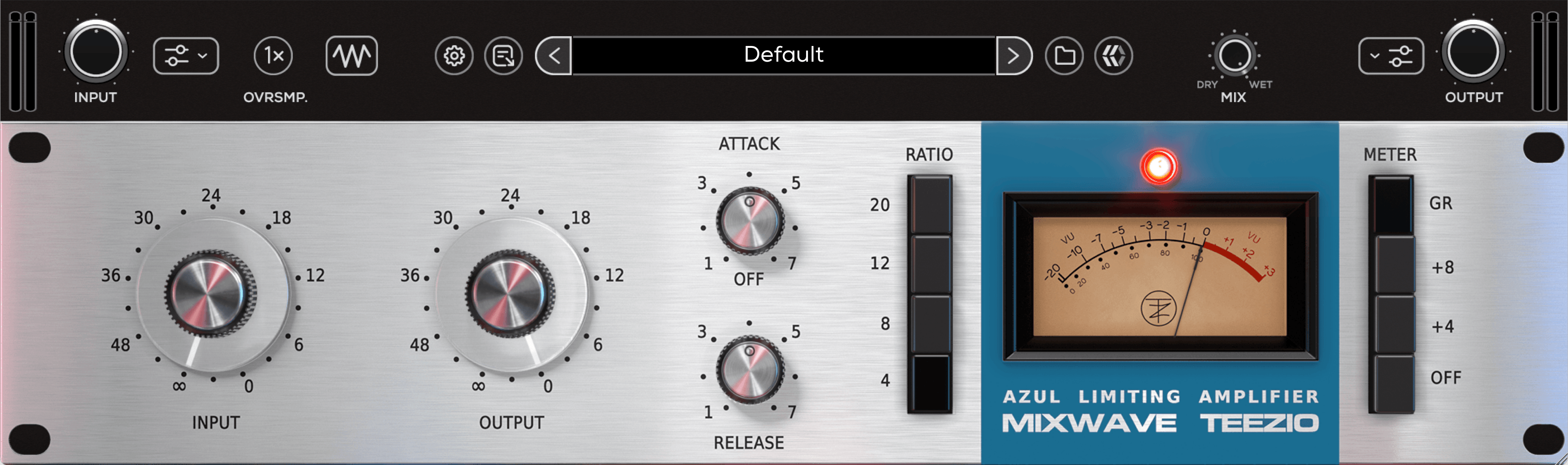
Input
Adjusts the signal level feeding the modeled limiting amplifier and determines how hard the signal drives the fixed-threshold gain-reduction circuit.
Turning Input clockwise increases the incoming level, produces more compression, and can increase harmonic saturation.
Range: -INF to 0.
These values reproduce the hardware-style faceplate scale and should be treated as reference markings rather than calibrated dB values.
Hold Shift while adjusting Input to move Output in the opposite direction for linked gain compensation.
Output
Adjusts the level leaving the modeled limiting amplifier. Use Output to restore level lost through gain reduction or to drive the output stage for additional character.
Output does not directly set the amount of compression.
Range: -INF to 0.
These values reproduce the hardware-style faceplate scale and should be treated as reference markings rather than calibrated dB values.
Hold Shift while adjusting Output to move Input in the opposite direction for linked gain compensation.
Attack
Controls how quickly gain reduction begins after the signal drives the compressor.
Slower settings allow more transient detail to pass before compression begins, creating a punchier response. Faster settings reduce peaks more immediately and can produce a denser or more aggressive sound.
Release
Controls how quickly gain reduction returns toward zero after the signal falls back.
Faster settings can add urgency, movement, and perceived loudness. Slower settings produce smoother recovery and can help maintain more consistent gain reduction.
Ratio
Selects how strongly signals are compressed after they drive the gain-reduction circuit.
Available ratios are: 4:1, 8:1, 12:1, 20:1
Hold Shift and click any Ratio button to engage All Buttons In mode. All four Ratio buttons engage together.
To leave All Buttons In mode, click the desired individual Ratio button.
Meter
Selects what the VU meter displays and controls the operating state of the modeled limiting-amplifier section.
GR
Displays gain reduction in dB. The needle rests at 0 when no gain reduction is occurring and moves left as compression increases.
+8
Displays output level using the +8 calibration, where 0 VU corresponds to +8 dBu.
+4
Displays output level using the +4 calibration, where 0 VU corresponds to +4 dBu.
The +4 and +8 buttons change only the meter reference. They do not add output gain or alter the sound.
OFF
Disengages the modeled Azul limiting-amplifier section.
Shared controls in the top Global Plugin Controls section may remain active. Use your DAW’s plugin bypass when you need to remove the entire plugin, including all global input, output, filtering, and mix processing.